
Binary file search on Windows
Inspect files, disks and process memory. Automate analysis with Python.
Search the contents of large binary files and inspect matches at their offsets. Combine search with byte-level editing and Python structure analysis.
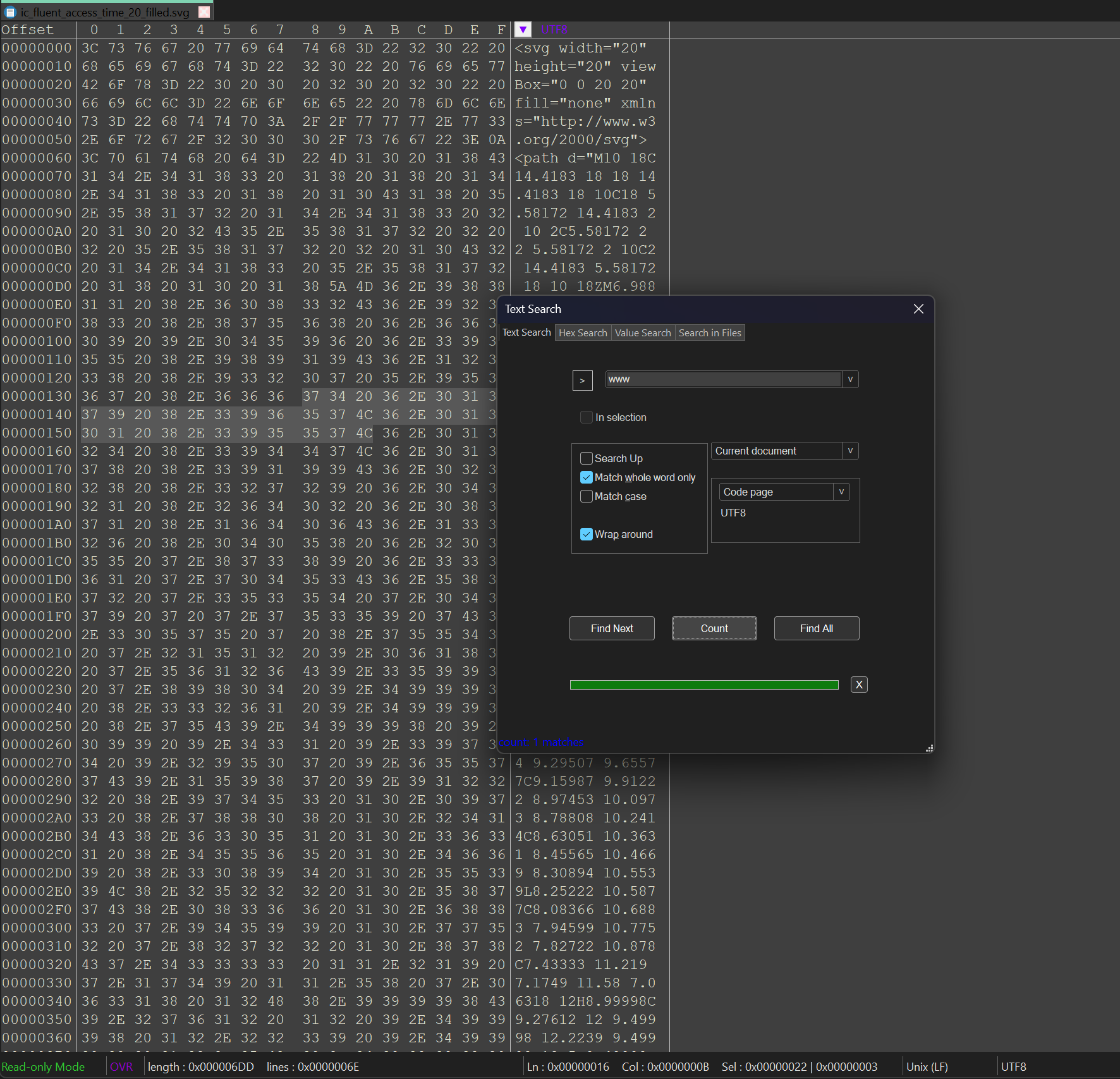
Workflow
- Open a working copy
- Inspect the target bytes
- Review the result
Open the source file, enter the search condition in a supported mode and start the search. Review matching offsets and nearby bytes before continuing analysis.
Before changing data
Search results locate matching data; they do not establish its meaning. The selected mode and text encoding affect results. Searching a large file still requires reading the relevant data.
Common questions
How does Python safe mode work?
You can disable selected modules, for example process and network, to prevent them from loading. This setting is not a guarantee of a fully isolated sandbox.
What do the script shields mean?
A green shield marks an official script whose signature passed verification. A yellow shield identifies a script from your custom directory, rather than a malicious-script verdict.
What is sent to the AI service?
You configure the endpoint URL, API key and model name in Settings. JoHex sends the editor content you select and adds analysis context, such as the current file-analysis task.
Can deleted files always be recovered?
No. JoHex analyzes residual filesystem data. Recovery depends on the remaining information, and no success rate is guaranteed.
How does JoHex handle large files?
JoHex uses cached loading rather than keeping an entire large file in RAM. This helps control memory use and stalls; actual responsiveness depends on storage and the operation.
Use JoHex for your next binary analysis task.
Review the available edition and download options before installing.