Certificate sources
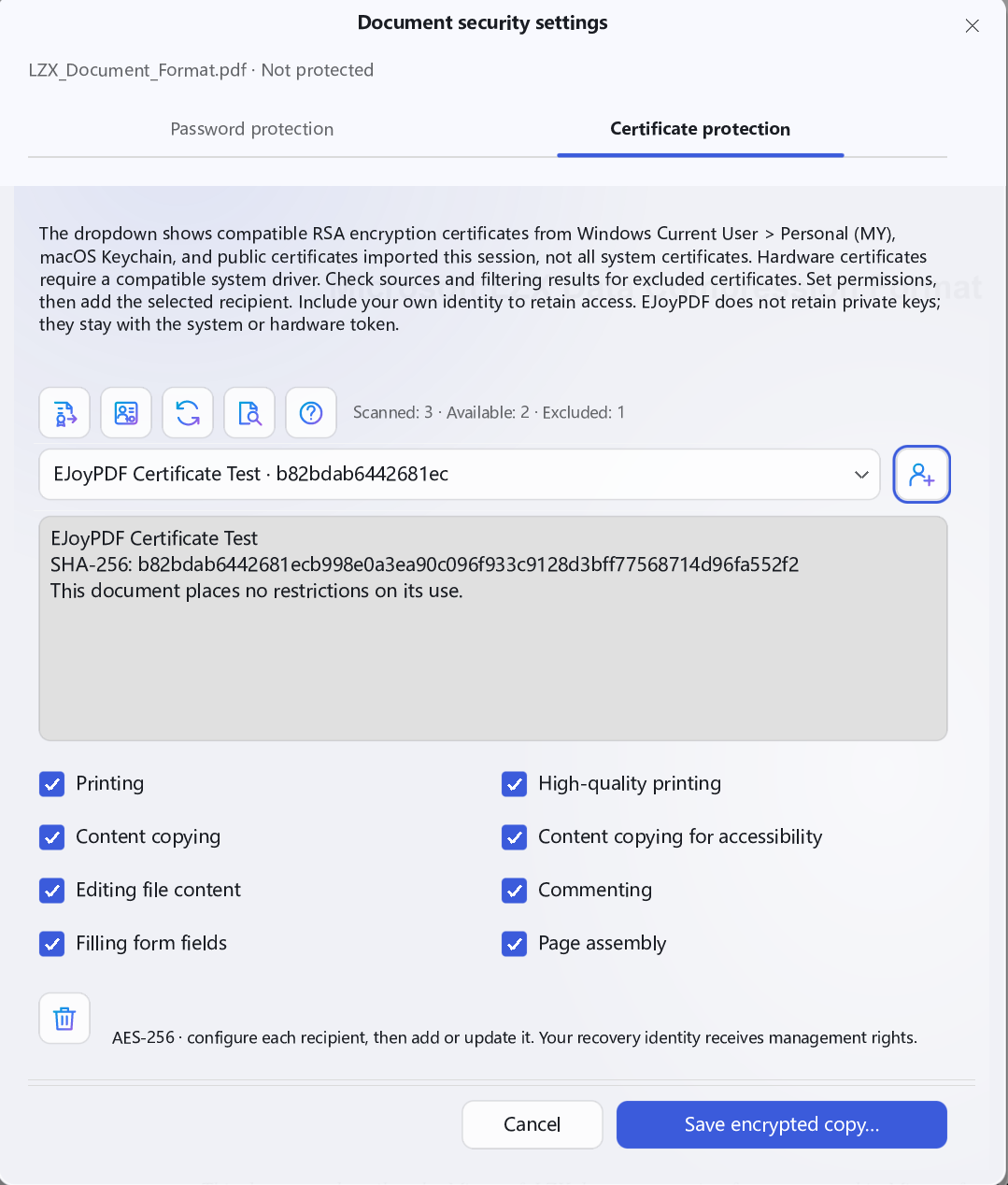
EJoyPDF lists compatible RSA encryption certificates from Windows Current User → Personal (MY), macOS Keychain and public certificates imported during the current session. Duplicate certificates are grouped by fingerprint. Hardware tokens require a compatible system driver.
Recipients and permissions
Select a certificate, set its permissions and add or update the recipient. A public certificate lets you add a recipient. To keep access yourself, include your own certificate and make sure the matching private key is available through your system identity or hardware token.
Save and verify access
Choose Save encrypted copy. EJoyPDF verifies access using your private key before opening the save dialog. Save to a new file, then reopen it in EJoyPDF to check access. A PFX import password protects the identity file and is separate from PDF access.
Test with a software identity
On Windows, open an unsigned, unencrypted test PDF and add a test recipient using only a public .crt certificate. If no matching private key is available for any selected recipient, verification fails and no encrypted copy is created. Import the matching .pfx into Current User → Personal, refresh the list, then try saving again. On macOS, import the digital identity into Keychain.
Troubleshooting
If a certificate is missing, review Certificate sources and filtering results. If verification fails, check that your own identity is among the recipients, confirm the system import or token connection, and check for a PIN prompt. Error details can include system errors and certificate fingerprints. Private keys remain with the operating system or hardware token.